
TikTok Ads Audience postbacks build audiences in TikTok Ads based on conversions generated on the Katalys network. Conversion data is sent to TikTok's Events API using your developer token, enabling retargeting, audience optimization, and performance measurement within TikTok's advertising platform.
Prerequisites
Before setting up a TikTok Ads Audience postback, you will need:
-
A TikTok for Business account with Ads Manager access
-
A TikTok Pixel configured in your TikTok Ads Manager
-
A Developer Token obtained from the Settings tab of your TikTok Pixel
Setup Steps
Step 1: Choose Postback Method
-
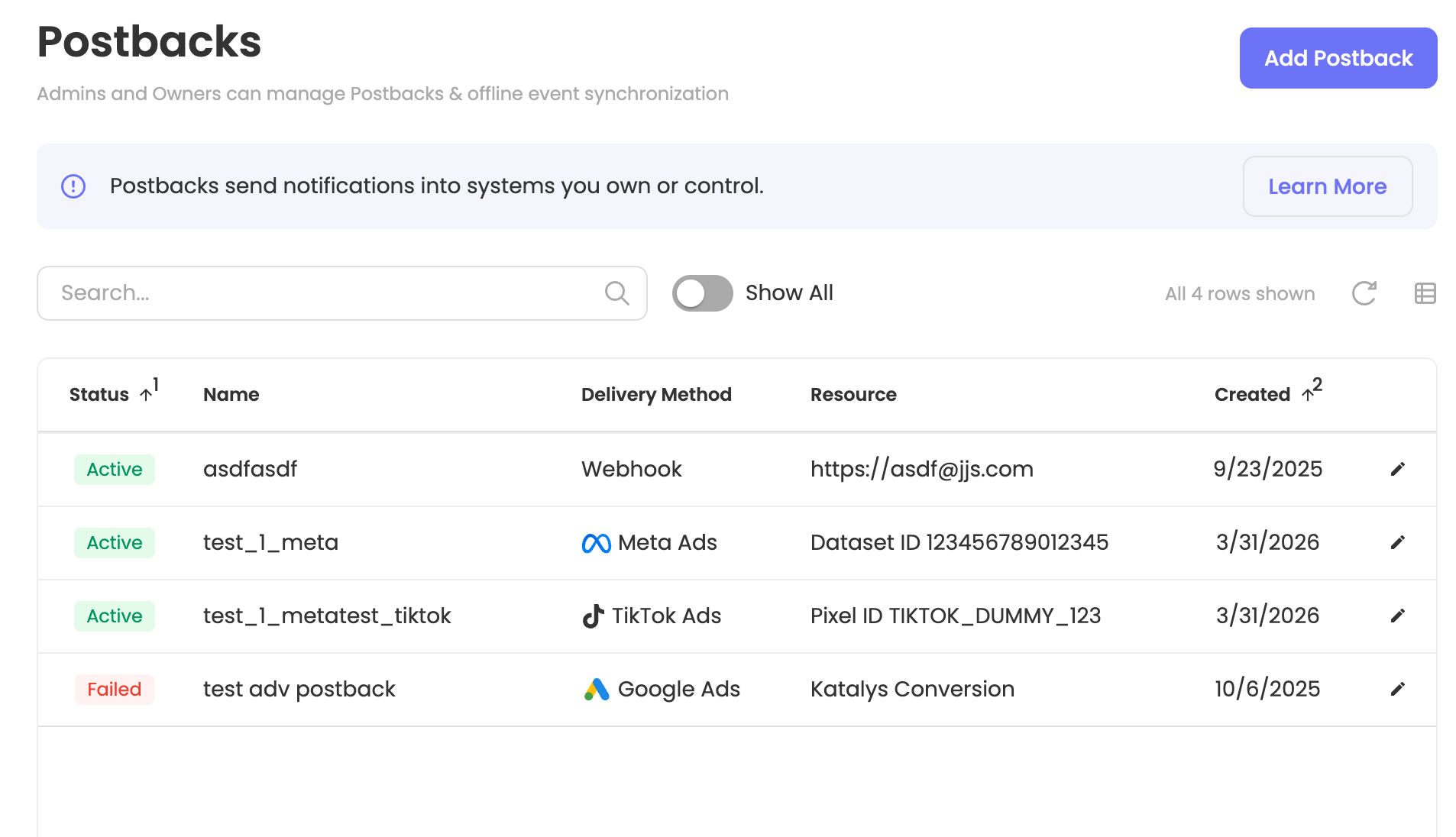
Navigate to Integrations → Postbacks in the Katalys dashboard.
-
Click Add Postback.
-
Select TikTok Ads Audience from the list of postback methods.
Step 2: Connect to TikTok
TikTok connections are configured via Manual Entry:
-
Enter your Developer Token — the token obtained from the Settings tab of your TikTok Pixel in TikTok Ads Manager. More information here: https://ads.tiktok.com/help/article/how-to-create-and-access-tiktok-pixel-id?lang=en
-
Click Save Connection to validate and store the credentials.
For step-by-step instructions on locating your Developer Token, click the TikTok Instructions link in the connection form.
Step 3: Choose Use Case
Select the data scope:
-
Billable Conversions — Only partner-payable conversions.
-
Touched Conversions — All partner-influenced conversions (payable and non-payable).
-
All Events — Every conversion event from your CRM or website.
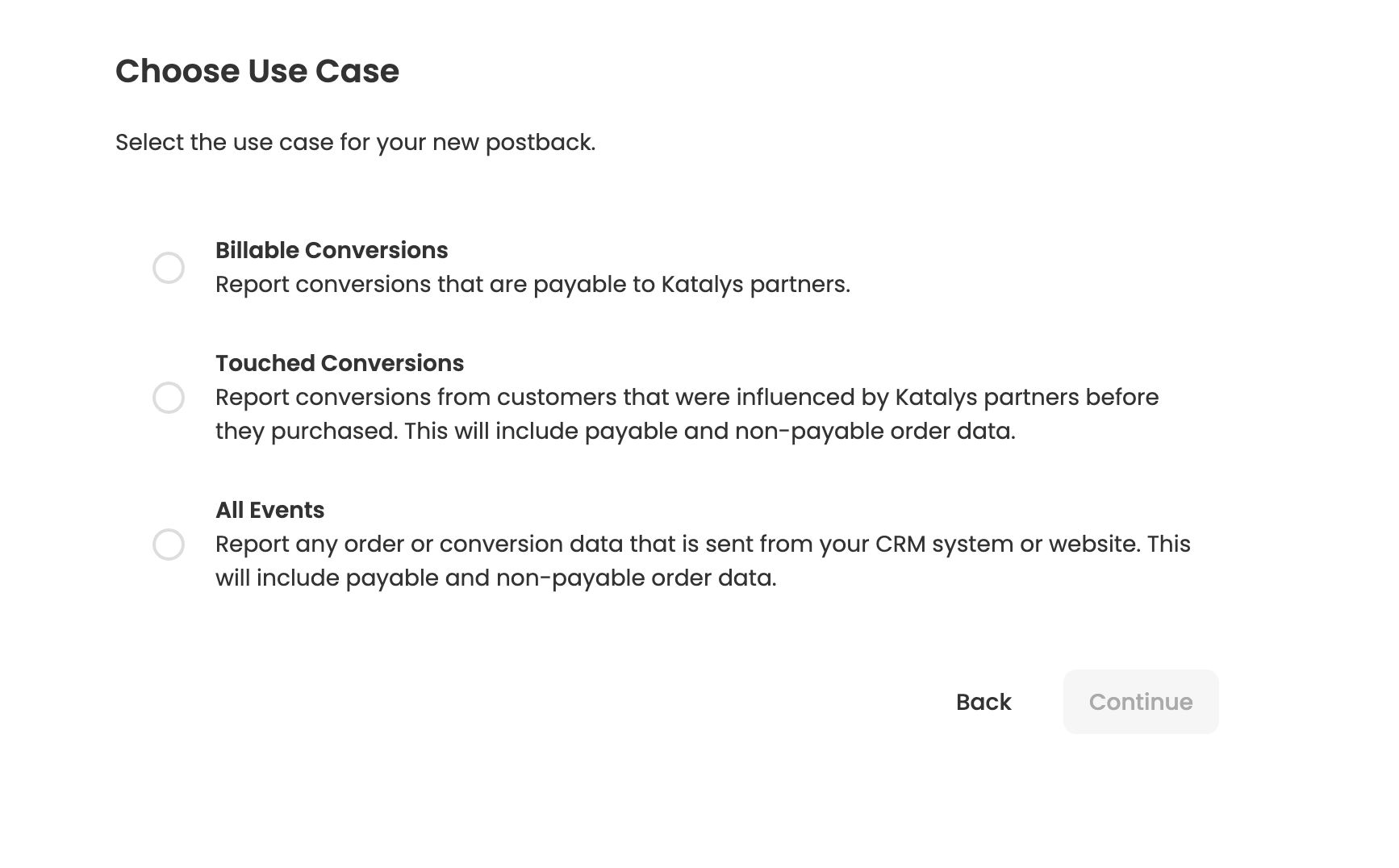
Click Continue.
Step 4: Configure the Postback
-
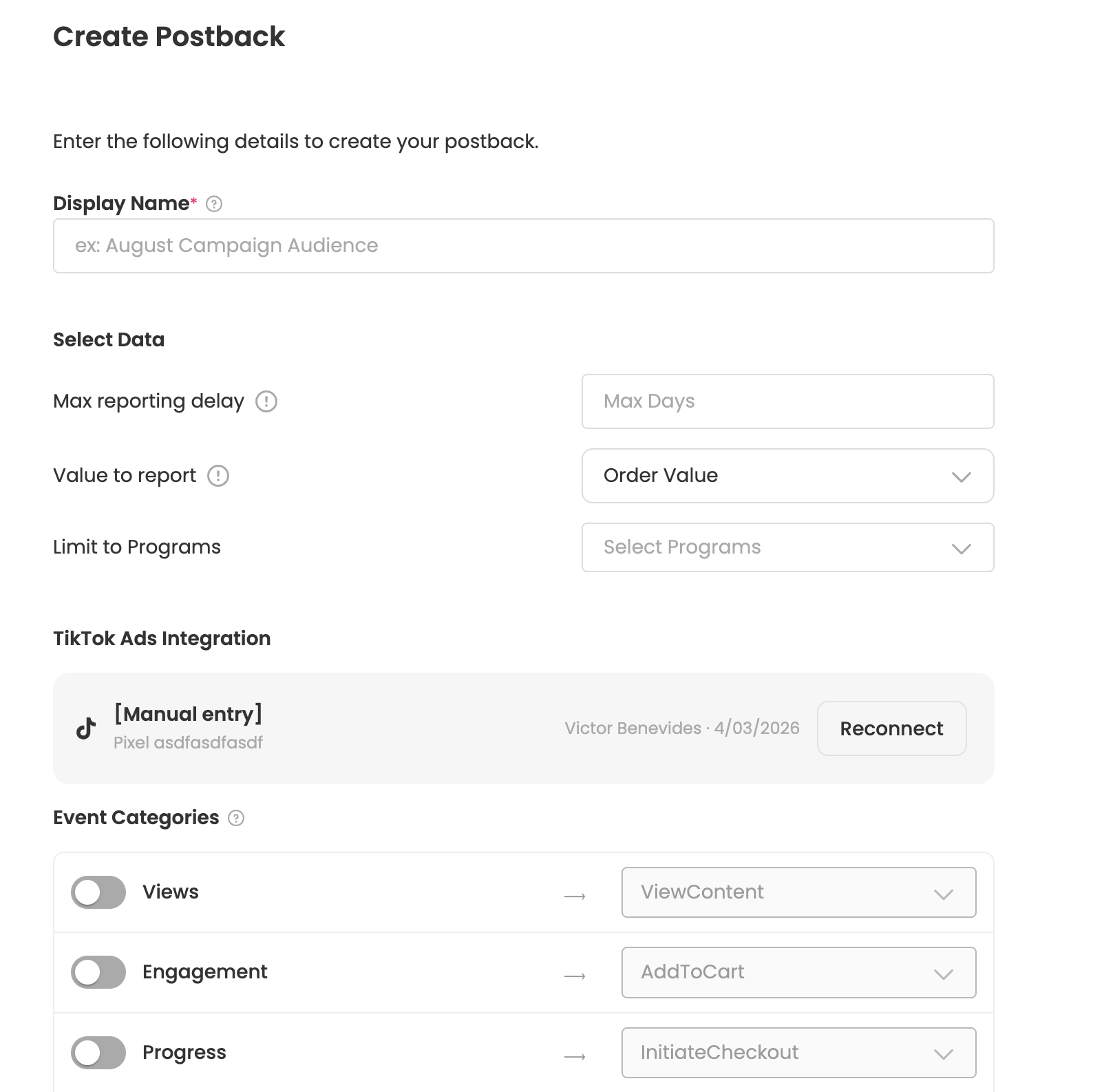
Display Name — Enter a descriptive name (e.g., "TikTok Ads — Katalys Conversions").
-
Max Reporting Delay - By defining this parameter, the postback will only be triggered if the time delay between click and conversion is less than this number of days. This may be important for media buying, when restricting audiences to just the most important traffic.
-
Value to Report: Order Value or Cost. This option is only available to advertisers.
-
Limit to Programs - Select from a list of your approved Programs to filter and limit conversion data sync from selected Programs.
-
Event Categories — Enable the categories you want to send.
Step 5: Create
Click Create Postback to save. Katalys will begin sending matching conversion events to your TikTok Pixel.
Available Events
The events available to push into your Pixel will come from 1) user session events, and/or 2) conversion events. You can read more about event types and how to select appropriate events on the page Postback Event Types →
For each chosen Event Category or Custom Event, you can select what event name to use for that category or event.
If you configure a custom event, that event will be sent to TikTok using the Event Name for the custom event instead of using the category’s event name.