An Integration is a technical connection between the Katalys Marketing Platform and your websites and/or CRM. Your data is collected by a script deployed to your website, or by implementing a Katalys plugin. Integrations allow you to configure and verify how your data and tracking scripts are working.
An integration collects data into a Tracking ID that you control. You typically need only a single Tracking ID for all your data.
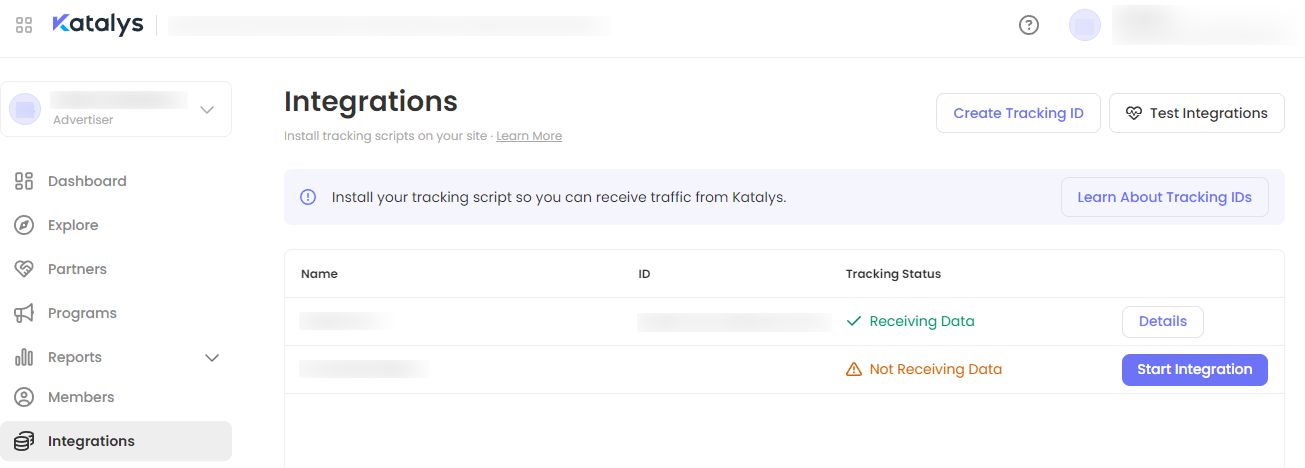
On the Integrations page, you will see your Tracking IDs or Scripts available for your Profile.
Ready to start integrating? Go to your Integrations page ->
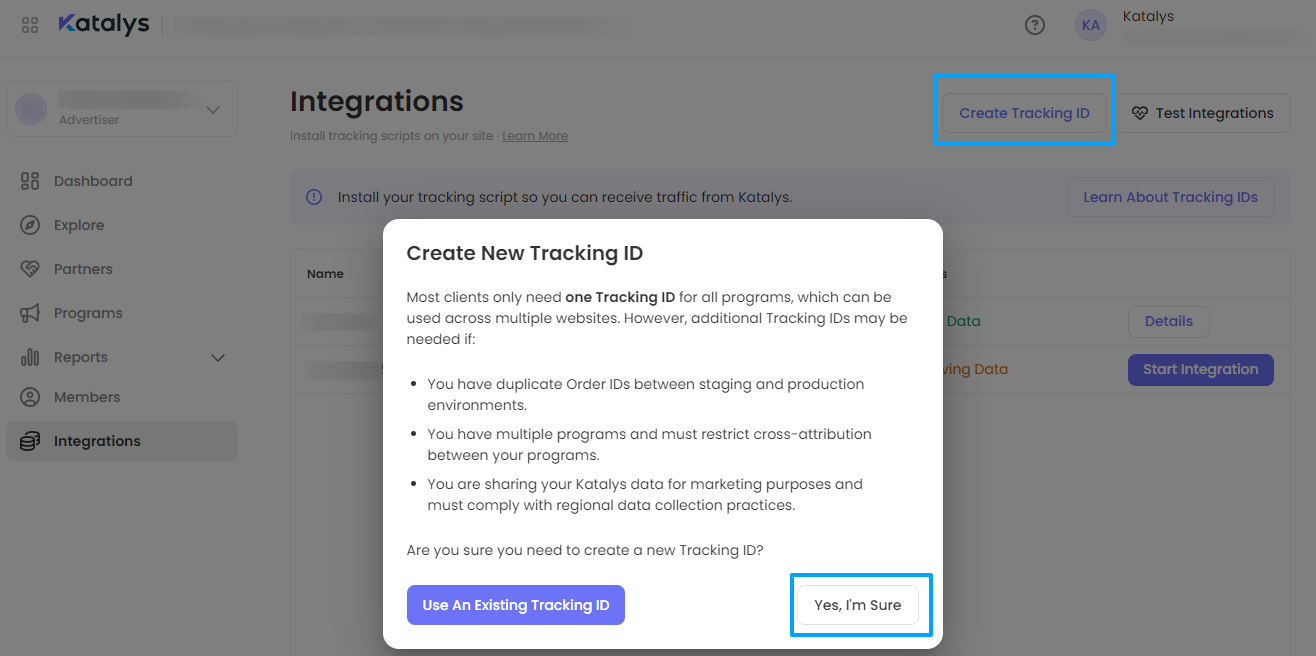
A Tracking ID is automatically created for every new Advertiser profile by default. You can add subsequent Tracking IDs, using Create Tracking ID button at the top of the page. You will be prompted to confirm you would like to create a separate Tracking ID. The use cases for separate IDs is provided in the pop-up window.
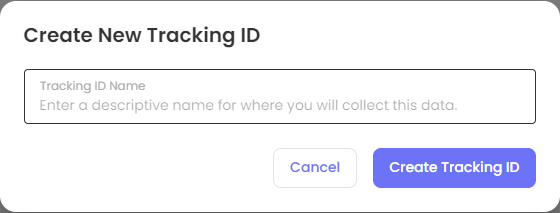
If you are confident you want to create a separate ID, click Yes, I’m Sure button to proceed and enter the descriptive name for the new Tracking ID:
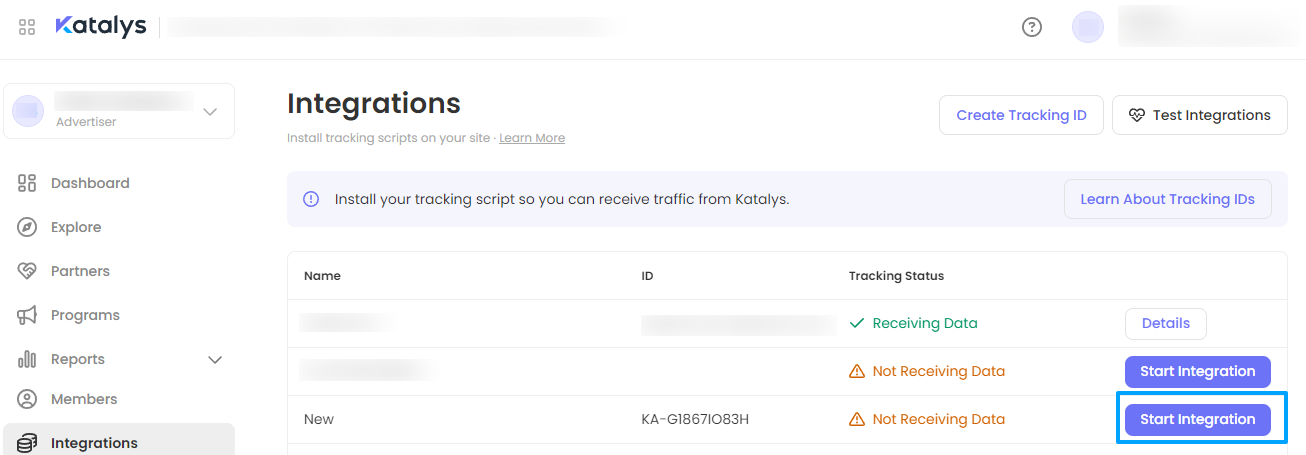
Once the new Tracking ID is created, click Start Integration button to proceed with the Integration:
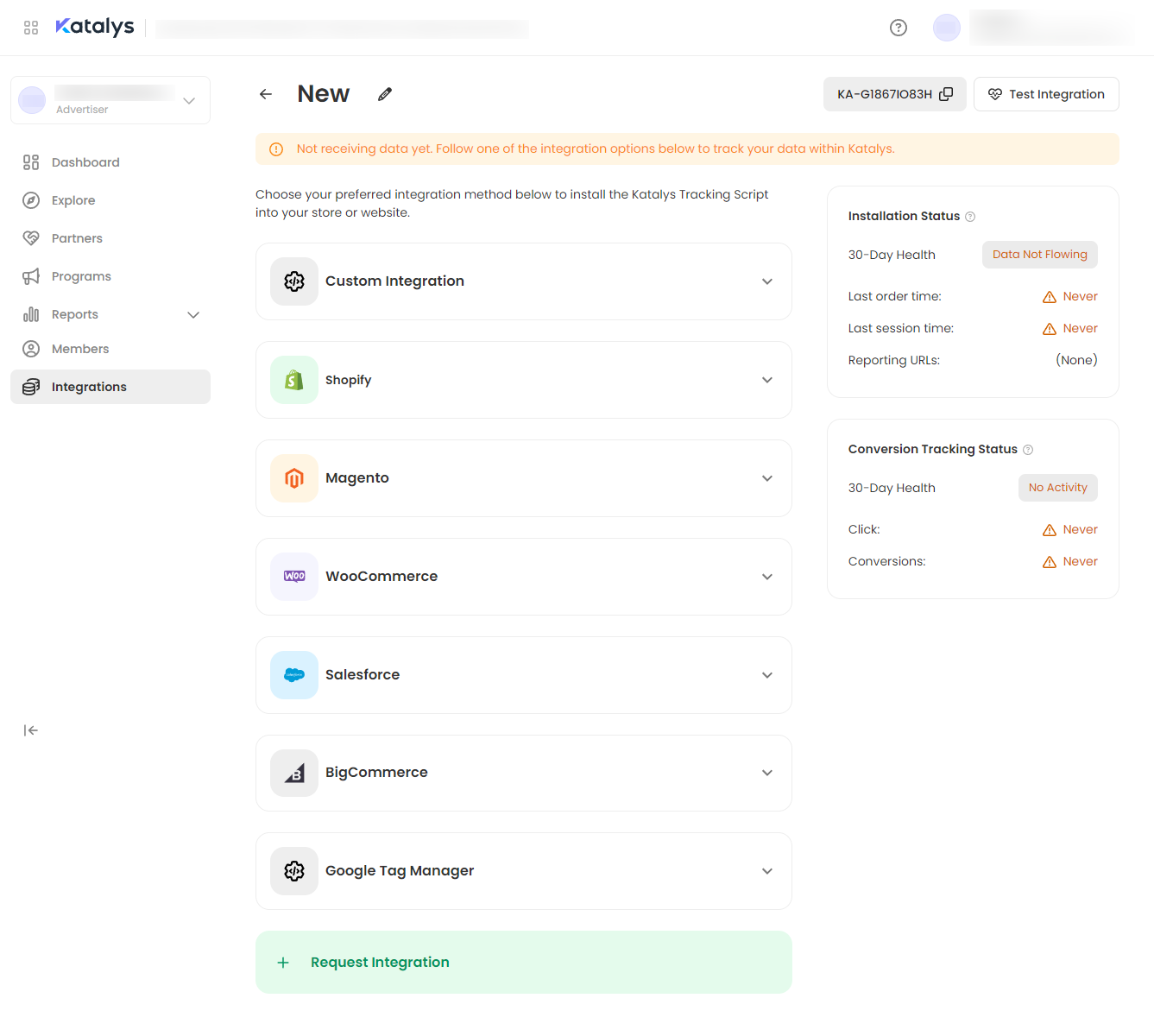
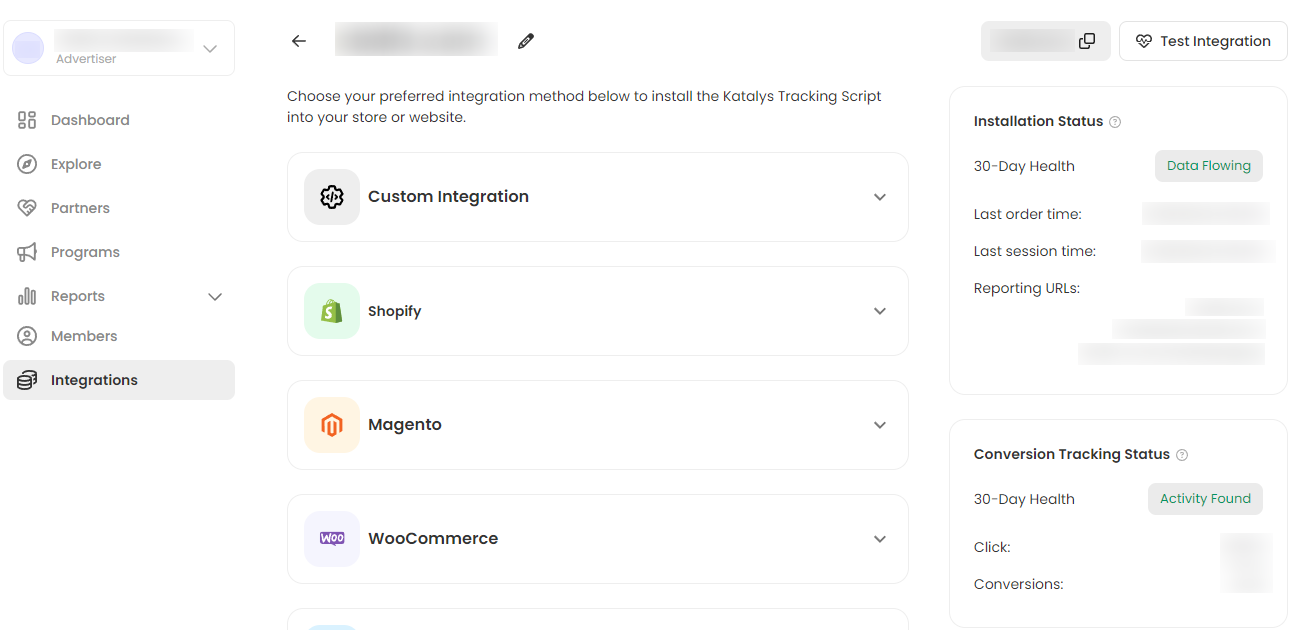
The page with the integration instructions will open, where you can update the Tracking ID name, find the instructions for the required integration and see overall activity by this Tracking ID:
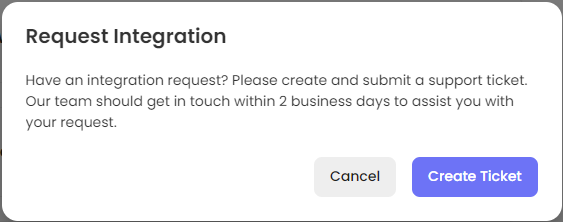
Click 
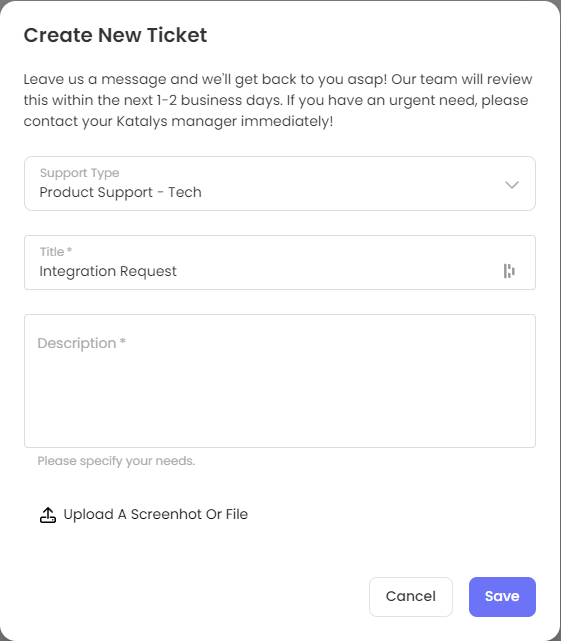
Fill in the description of the integration you require as detailed as possible and add screenshots, if needed. Our engineers will get back to you to provide the requested integration:
Once your integration is set up properly and starts data exchange, the status of the integration will be switched to Receiving Data and the button next to it will change to Details:
After clicking Details button, you will see the status of this Tracking ID and the integration:
Testing your Integration
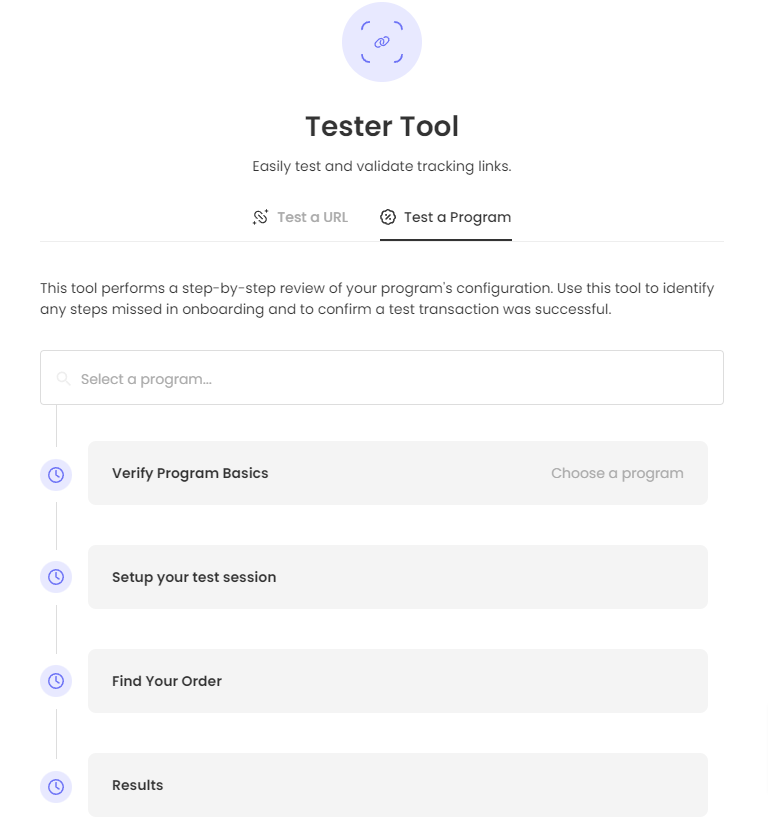
If you have any problems with the integration, click Test Integration button at the top right corner of the page to conduct issue tracking. You will be redirected to the Tester Tool to perform Program testing: