This page describes use cases for Direct Links, what Programs are compatible with Direct Links, and how to generate them.
Description
A Direct Link is a type of tracking link that bypasses all other types of tracking, sending a user directly to an Advertiser’s landing page. This type of link requires special URL parameters so that the Partner still receives credit for this traffic. Additionally, the URL and parameters must be compatible with the Advertiser’s technical setup for the traffic to be tracked correctly.
Direct Links are primarily used on social media buying campaigns, such as Meta Ads Campaigns. Systems like Meta’s require Partners to use Direct Links due to “link validation” techniques; Partners must resort to using Direct Links because that is the only type compatible with Meta’s link validation process.
Read about other types of Tracking Links ->
Direct Links should only be used when other types of tracking links are not available. Direct Links are brittle: they require special setup on the Advertiser’s website and may break if the Advertiser updates their funnel.
Instructions
To create a Direct Link, you must fulfill these requirements first:
-
You must have access to a Partner Profile.
-
You must be approved for a Program on the Katalys Marketplace.
-
You must select a compatible URL. (validation steps below)
Not all Programs or tracking links are eligible to be converted into Direct Links. You must create the Direct Link and validate the link works correctly before using it in your promotion or advertisement.
Follow these steps to generate a Direct Link:
-
Navigate to your KMP Profile.
Go there now → -
Click on “Create Link” button in the header
-
Select a valid Traffic Source and Program.
-
Click on “Link Type” to see the available link types for this Program.
When Direct Links are not available, you might see this:
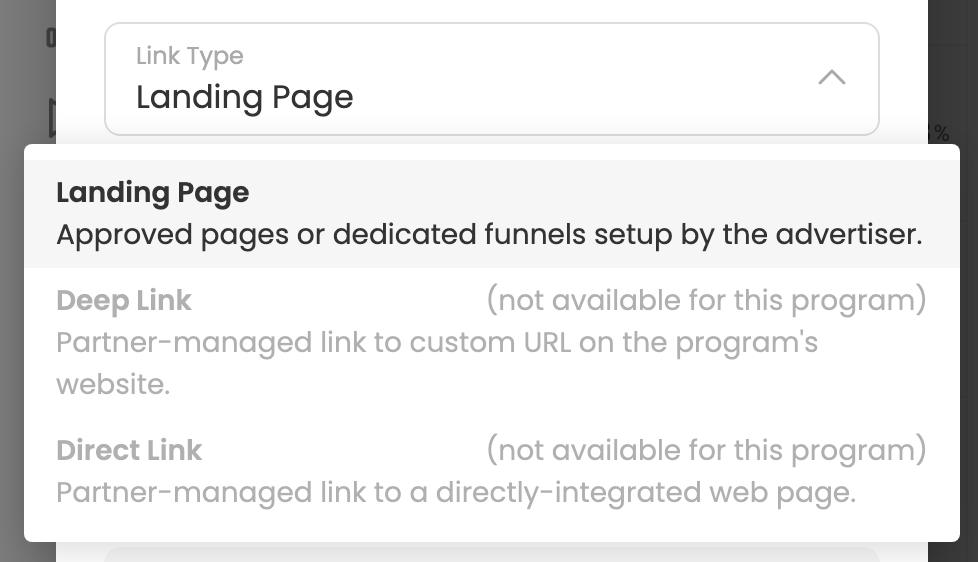
If unavailable, you can request that Client Support review the Program. See details below -->
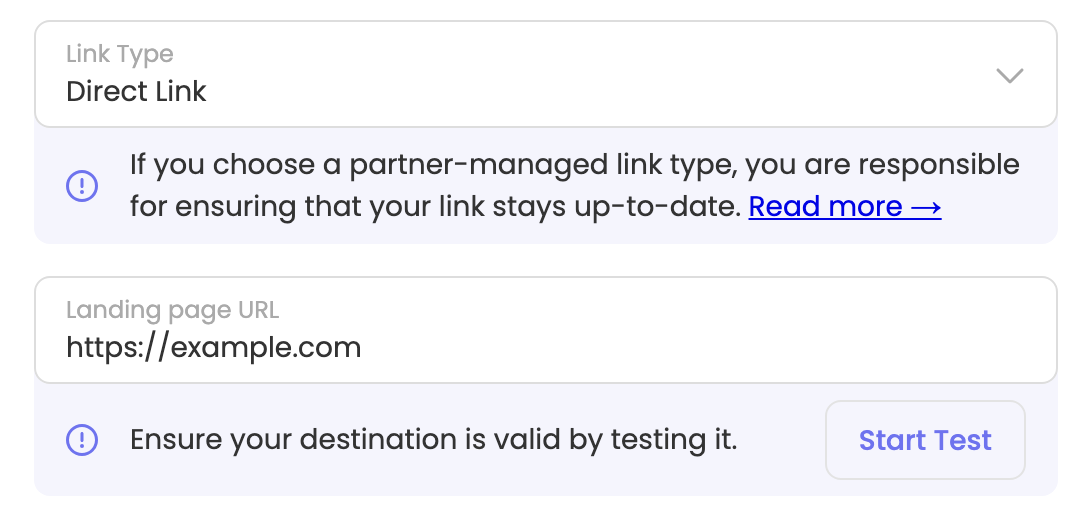
When Direct Links are available, you might see this:
-
Enter your desired Landing Page URL into the box, and click “Start Test”.
-
Wait for the test to complete (up to 30 seconds).
If the test was successful, you will see your Direct Link URL at the bottom of the form.
Requesting Direct Links
If a Program does not allow Direct Links, this could be because the Advertiser does not allow them, or because the Advertiser does not have a compatible technical integration.
You can request that Client Support review the Program and either activate Direct Links or communicate the request to the Advertiser. The Advertiser may be required to complete additional technical requirements, so this request could take some time.
Please include in your request:
-
Traffic Source ID
-
Program Name
-
Desired destination URL
-
How you want to use the link and/or the volume you will drive
How to contact Client Support -->
Manual Validation
This section describes how to manually validate that a Direct Link is working correctly. The automated test can return a false-negative result if you have previously tested this Program before. This is because of browser cookies: the validation tool may not be able to generate a new click to replace your old one and satisfy the test. Use this process instead of the automated test when the automated test is failing, and:
-
you have been testing the same program repeatedly, or
-
you are launching a critical URL and want to manually confirm it is working.
Use these steps to manually validate that your Direct Link is working correctly:
-
Open a new incognito window.
-
Open the Developer Tools window.
You must do this before proceeding to see the appropriate data. You can do this by right-clicking on the newly-opened blank window and clicking “Inspect”, or by using the “View” window for your browser. -
Paste your Direct Link into the URL bar, and press
Enter.-
Wait for the page to load.
-
-
In the Developer Tools window, view the “Network” tab.
-
If you did not open the Developer Tools window in Step 2, you must close the Incognito Window and start again. Make sure to open the Developer Tools before navigating to the URL.
-
-
Search for the text
aff_c.-
You should see an entry in the list for the URL
https://track.revoffers.com/aff_c. -
If you do not see this entry, then this tracking links not eligible to be a Direct Link.
-
You can further validate the entry by confirming the parameters
offer_idandaff_idare defined and match your Program ID and Traffic Source ID from your original tracking link.
-
You must use an incognito window when performing validation because we use cookies to avoid creating duplicate clicks. To see the correct data in the Developer Tools window, that cookie value must be missing. Using an incognito window is the easiest way to ensure your session is clean.